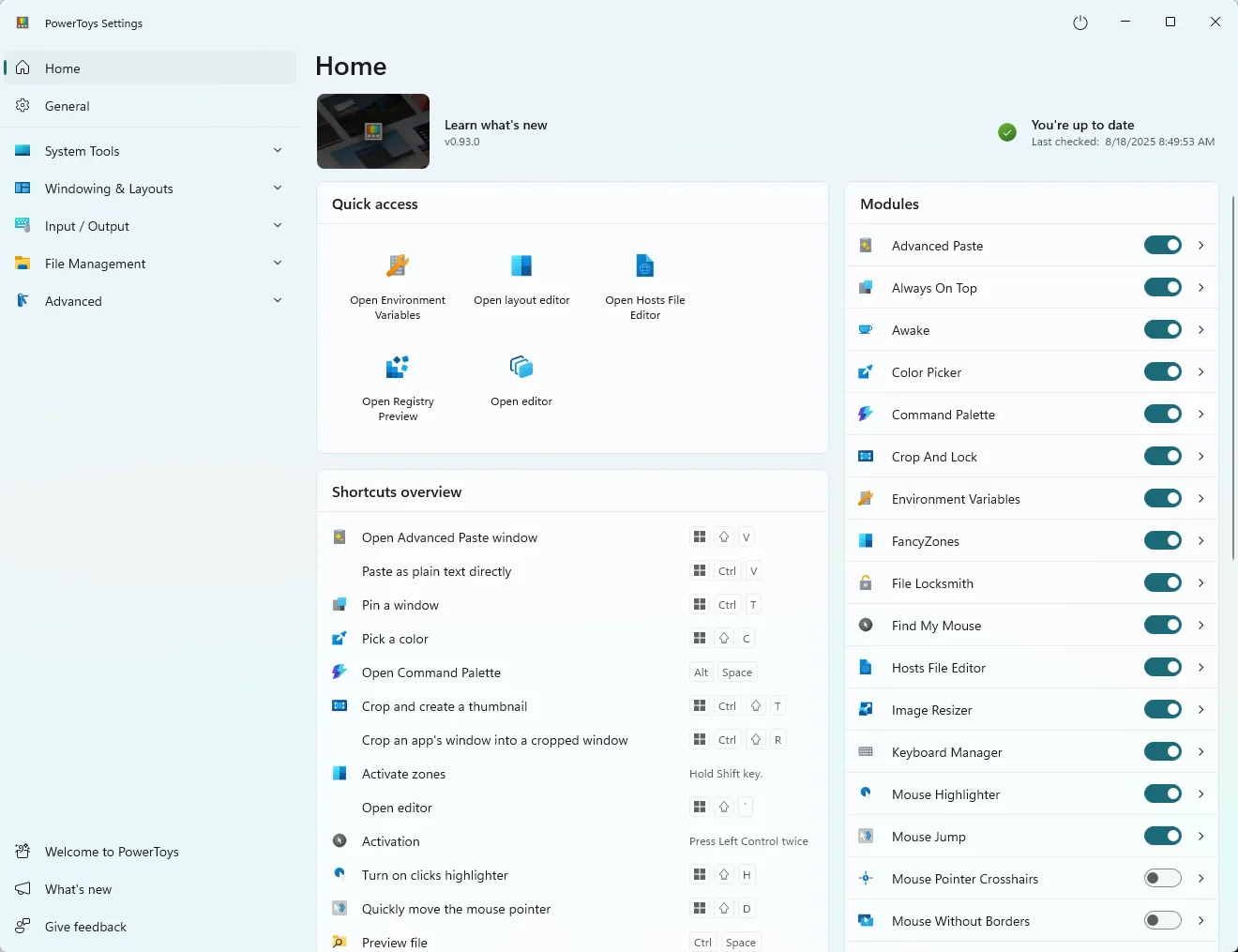
title: “Microsoft PowerToys Review 2026: Best Windows Tweaks, Official Install Paths” slug: “powertoys-review-2026” status: publish categories: [23] tag_names: [“powertoys”, “windows utilities”, “desktop productivity”, “microsoft tools”, “power users”] excerpt: “Microsoft PowerToys review 2026: verify the official install path, v0.98.1 release proof, Windows support rules, and whether this utility pack still earns a spot on a serious PC.” featured_image_url: “https://learn.microsoft.com/en-us/windows/images/powertoys-settings-home.png” featured_image_alt: “Official Microsoft PowerToys settings screenshot” meta: _yoast_wpseo_title: “Microsoft PowerToys Review 2026: Best Windows Tweaks, Official Install Paths” _yoast_wpseo_metadesc: “Microsoft PowerToys review 2026: verify the official install path, v0.98.1 release proof, Windows support rules, and whether this utility pack still earns a spot on a serious PC.”
Microsoft PowerToys is still a credible download in 2026 if your goal matches what the software actually does well. This review is based only on official sources checked on April 20, 2026. I verified the official homepage, official download path, official docs or help surface, the current release or changelog source, and the Thaiware discovery page used for product provenance. I did not run a live install for this update, so any recommendation here is anchored to documented official evidence rather than hands-on testing.
Last updated: April 20, 2026
- Rechecked the official homepage, download path, docs/help surface, and release page for the current public version story.
- Confirmed the Thaiware discovery entity, current stable version, and the featured image source before staging this payload.
Key takeaways
- The official Microsoft Learn overview, official install guide, and official GitHub release page align on the supported Windows baseline and the current stable release family.
- Microsoft PowerToys is best for windows users who want serious desktop shortcuts, window management, batch renaming, image resizing, ocr-style text extraction, and other built-in productivity upgrades from an official microsoft project.
- If you need mac or linux users, or windows users who only need one tiny utility and do not want a broader toolbox installed., this is probably not the right canonical download choice.
Official download path for Microsoft PowerToys Review
Hubkub does not host installers. Use the official vendor/project page first, then use this review to check fit, limits, and safer setup notes.
Hubkub verification notes for Microsoft PowerToys Review
- Official download/support links already cited on this page were checked as the preferred source path for Microsoft PowerToys Review.
- Hubkub does not host installer files; the download action points readers back to the official vendor or project source.
- This page separates practical fit, trade-offs, and safety notes so readers can decide whether Microsoft PowerToys Review matches their workflow.
Verification notes checked for Microsoft PowerToys Review
Review type: review based on official sources
Verified on: April 20, 2026
Thaiware discovery page: https://software.thaiware.com/14610.html
Official homepage: https://learn.microsoft.com/en-us/windows/powertoys/
Official download URL: https://learn.microsoft.com/en-us/windows/powertoys/install
Official docs / help: https://learn.microsoft.com/en-us/windows/powertoys/
Official release notes / release page: https://github.com/microsoft/PowerToys/releases/tag/v0.98.1
Latest stable version checked: v0.98.1
Beta version: none listed in the official install guide during this review
Release date shown on the official page: March 26, 2026
Official OS support checked: Windows 11 or Windows 10 version 2004 or newer on x64 or ARM64 hardware
Current official installer artifact seen: PowerToysSetup-0.98.1-x64.exe
File size checked: 394.49 MB for PowerToysSetup-0.98.1-x64.exe on the official GitHub release page
Display unit used: MB
Signature check: not separately documented on the official install page for this update
VirusTotal check: run your own malware scan before installing
Hash/checksum: not exposed on the official install guide or GitHub release page during this review
Official resources
Who should use it and who should skip it
Use it if: Windows users who want serious desktop shortcuts, window management, batch renaming, image resizing, OCR-style text extraction, and other built-in productivity upgrades from an official Microsoft project.
Skip it if: Mac or Linux users, or Windows users who only need one tiny utility and do not want a broader toolbox installed.
Pricing and license reality
PowerToys is free to download and use. The official Microsoft pages do not present a paid tier for the core utility suite.
That matters for this category because users often confuse a convenient download with a genuinely free long-term product. Here, the official source is clear enough to avoid that mistake.
Supported OS, current version, and safety checks
The current official support picture is straightforward: Windows 11 or Windows 10 version 2004 or newer on x64 or ARM64 hardware. The official stable version checked for this review is v0.98.1, and the official release source I used is dated March 26, 2026. For buyers who care about trust, the more important point is not just the version number but the quality of the source path. In this case, The official Microsoft Learn overview, official install guide, and official GitHub release page align on the supported Windows baseline and the current stable release family.
I still want to be precise about the boundary of this review: I did not install the app, verify a code signature locally, or upload files to VirusTotal for this update. So this page should be read as a strong source-verified trust review, not a hands-on malware or performance audit.
What this product simplifies for beginners
PowerToys is best for Windows users who want one trusted package that improves many small daily tasks at once. FancyZones, PowerRename, Keyboard Manager, Text Extractor, Image Resizer, and the launcher-style PowerToys Run cover real friction points that otherwise send people toward separate third-party utilities. That is why PowerToys keeps winning attention: it is not one killer app, but a bundle of utilities that quietly improves a lot of workflows.
The main caution is scope. PowerToys is useful because it does many things, but that also means some utilities will matter a lot more to you than others. If you only want a single renaming tool or single launcher, a smaller specialist app can feel lighter. But if you live on Windows every day and like Microsoft-backed utilities with active releases, the official install path is strong and the feature set remains unusually practical.
PowerToys vs Bulk Rename Utility vs Q-Dir vs AutoHotkey in 2026
| Product | Choose it when | Main compromise |
|---|---|---|
| PowerToys | Best if you want one official Windows utility bundle with many modules | Windows-only and larger than single-purpose tools |
| Bulk Rename Utility | Better if file renaming is your main workflow | Far weaker as a general desktop utility suite |
| Q-Dir | Better if your pain point is multi-pane file browsing only | Does not replace PowerToys window or keyboard modules |
| AutoHotkey | Better if you want deep scripting and custom automation | Requires more setup and scripting confidence |
The comparison rule is simple. Pick Microsoft PowerToys when its main strength matches your actual workflow, not when the category around it looks crowded. That is the best way to avoid downloading a tool that is popular but wrong for your real job.
Microsoft PowerToys Review pros and cons: fit notes
Pros
- Official Microsoft-backed trust path through Learn docs and GitHub releases
- Very broad utility coverage without requiring many separate downloads
- Clear install guidance for GitHub, Microsoft Store, and package-manager paths
- Still free with an active release cadence
Cons
- Windows-only, so it is not a cross-platform productivity layer
- Large installer compared with single-purpose tools
- Not every module will matter to every user
Safe official download notes for Microsoft PowerToys Review
Use the official download path above, not a mirror that strips away the documentation and proof layer. If you want the cleanest trust path, start from the vendor homepage, move to the vendor’s own download page, and confirm the current release source before you install. For this review, I used that exact sequence and also checked the Thaiware discovery entity only for provenance, not for article facts.
If you want a few related Hubkub reads before deciding, start with Bulk Rename Utility Review 2026 Q-Dir Review 2026 Rufus Review 2026. Those pages are not substitutes for official vendor sources, but they do help place this product in a broader software-buying context.
Alternatives and overlap note
Choose Bulk Rename Utility if renaming is the only feature you care about. Choose Q-Dir if you mainly want a more capable file manager layout. Choose AutoHotkey if you want maximum automation and can tolerate scripting. Choose PowerToys when you want a trustworthy all-round upgrade to how Windows behaves day to day.
The overlap risk for this page was reviewed before staging. Windows-only scope is the key clarity point. The review must not sound like a cross-platform productivity recommendation.
Who should download Microsoft PowerToys Review?
Microsoft PowerToys still earns its place in 2026 because the value is not hype but repetition: it fixes dozens of tiny frustrations that heavy Windows users hit every week. The official install guide is clear, the supported OS baseline is explicit, and the GitHub release track exposes exact installer artifacts. If you only need one small feature, a smaller tool may be better. If you want a practical Windows utility suite from an official source, PowerToys remains one of the cleanest downloads available.
Microsoft PowerToys Review download and safety questions
Is PowerToys safe to download?
It has a strong official trust path because Microsoft documents installation on Microsoft Learn and sends users to the official GitHub releases page or the Microsoft Store. I did not run a local signature audit or malware scan for this update, so the safety conclusion here is source-verified rather than hands-on, but the official path is much clearer than random download-portal mirrors.
Does PowerToys work on Windows 11 and Windows 10?
Yes, but the support floor matters. The official install guide says Windows 11 or Windows 10 version 2004 or newer is required, and the processor must be x64 or ARM64. If a machine is older than that, PowerToys is not the right download even if the hardware still runs lighter utilities.
Is PowerToys free?
Yes. The official Microsoft pages treat PowerToys as a free utility suite, not a freemium upsell. That makes it appealing for users who want real workflow upgrades without a subscription decision attached to every desktop enhancement.
What is the best PowerToys feature for most people?
For many users it is a tie between FancyZones, PowerRename, Text Extractor, and PowerToys Run. The best module depends on your workflow. If you multitask heavily, FancyZones stands out. If you rename files in batches, PowerRename is often the reason to install the suite in the first place.
Is PowerToys better than separate utility apps?
Sometimes yes, sometimes no. Separate utilities can be smaller and more specialized. PowerToys becomes the smarter choice when you want one official package that improves several Windows workflows at once. It is less compelling if you only need one isolated function and already like a specialist tool for that job.
Reader-first software checklist
Before installing or switching to this software, use this quick checklist to confirm whether it fits your needs and risk tolerance.
- Official source: prefer the developer website, official documentation, or a clearly trusted distribution channel.
- Platform fit: check whether your Windows, macOS, Linux, Android, or iOS version is supported.
- License and cost: confirm whether the app is free, open source, freemium, trial-based, or paid.
- Privacy and permissions: review what files, folders, network access, account data, or browser permissions the app may use.
- Backup first: for recovery, storage, networking, privacy, or system utilities, back up important data before changing settings.
Safe download and setup notes
Hubkub does not recommend clicking misleading download buttons or installing unknown bundles. When possible, use the official source and avoid third-party installers that add toolbars, browser changes, or unrelated offers. After downloading, verify the file name, publisher, version, and installer prompts before continuing.
Pros, limits, and alternatives to consider
- Best fit: readers who need the core function described in this guide and prefer a practical setup path.
- Watch out for: outdated versions, unsupported platforms, unclear installers, or features that require paid upgrades.
- Compare alternatives: if this app feels too complex, too limited, or not maintained enough for your workflow, compare it with similar tools before installing.
Related Hubkub resources: Safe Software Downloads, Software Reviews, How We Review Software, and Content Quality Standards.
FAQ
Should I download this software from any mirror site?
Use the official developer website or a trusted distribution channel whenever possible. Mirror sites can be useful in limited cases, but they may also include outdated installers, misleading ads, or unwanted bundles.
What should I check before installing?
Check the publisher, version, license, supported operating system, installer prompts, and whether the app requests sensitive permissions.