Last updated: May 7, 2026. Checked the official Recuva homepage, download page, support hub, and version-history page before publication.
Key takeaways
- Recuva is a Windows-only deleted-file recovery utility from CCleaner/Piriform, now part of Gen Digital.
- The official download page lists Recuva Free and Recuva Professional, with Free and Professional described as home-use products.
- The checked official release marker is Recuva v1.54.120, shown on the vendor download and version-history pages.
- Use Recuva as a first-pass recovery tool for recently deleted files, memory cards, and simple recovery jobs; stop writing to the affected drive before scanning.
- For damaged disks, business recovery, or important evidence, use a clone-first workflow or a professional recovery service instead of repeatedly scanning the original media.
What this guide verifies—and what it does not
This is a source-verified download and safety guide, not a hands-on installation or recovery benchmark. The version, product availability, and download route above were checked against the publisher’s public pages on May 7, 2026. Hubkub does not claim a test result, scan time, recovery percentage, hash check, or malware scan result for a reader’s device.
Recovery safety boundary: results depend on the storage device, whether data has been overwritten, and the device’s own data-management behavior. If the files matter, stop writing to the affected drive, avoid installing recovery software onto it, and use a qualified recovery service for business-critical, legal, or irreplaceable data.
Official download URL: https://www.ccleaner.com/recuva/download
Recuva in 2026: what it is best for
Recuva is a compact Windows recovery utility for people who deleted files by accident and want a simple scan before moving to heavier forensic or professional tools. It is not a backup system, a disk-repair suite, or a designed to provide way to recover overwritten files. Its a strong fit is the common home-user scenario: files were deleted recently, the drive is still readable, and the user can stop saving new data to the same disk before running recovery.
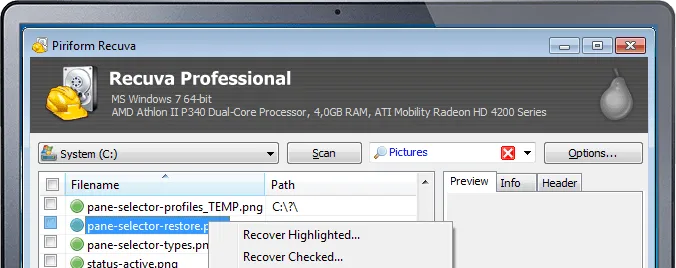
The product is especially easy to understand because it focuses on a narrow job. You choose what type of file to look for, choose where to scan, and review recoverable results. That makes Recuva less intimidating than full disk suites, but it also means expectations should stay realistic. Recovery depends on the file system, whether the blocks have already been reused, whether the drive is an SSD with TRIM behavior, and whether the storage device is physically healthy.
Safe Recuva download guidance
The safest route is the official CCleaner Recuva download page, not third-party installer mirrors. Recovery software is a sensitive category because users often run it during stressful data-loss events, and fake installers can bundle unwanted software or malware. The official route also keeps the Free versus Professional distinction clear instead of hiding it behind repackaged download buttons.
Before scanning, avoid installing Recuva on the same drive that contains the deleted files. If you deleted files from the Windows system drive and still need to install the tool, use a separate drive where possible, or recover to an external disk. Never restore found files back to the same location during the first recovery attempt, because writing new files to the affected drive can overwrite data that might otherwise remain recoverable.
Free versus Professional: what the official pages imply
The official download page presents Recuva Free and Recuva Professional. The checked vendor copy says Recuva Free and Professional are for home use only, while Professional is promoted as the paid upgrade. That makes the honest label freemium: there is a free Windows download, but the vendor also sells a Professional tier with added commercial value.
For many deleted-file situations, starting with the free edition is reasonable. If the recovery job is critical, business-related, or tied to a failing disk, the upgrade decision is less important than the workflow. A clone-first approach, a read-only recovery environment, or a specialist service can matter more than the consumer software tier when the original media may degrade or when legal evidence is involved.
Windows support and version reality
The official Recuva download page still lists broad Windows support, including Windows 10, 8.1, 7, Vista, and XP, with both 32-bit and 64-bit versions noted and RT tablet editions excluded. That wide support is useful for older PCs and legacy recovery jobs, but it also means modern users should pay attention to Windows security context: download from the official page, keep Windows protected, and avoid running unknown recovery installers from old file libraries.
The release marker checked for this review was Recuva v1.54.120 on the official download and version-history pages. Recuva does not have the rapid update cadence of a browser or a security suite. The page is therefore a top judged by whether the official vendor download path, support path, and version-history surface agree enough for a safe canonical download route.
Where Recuva works well
- Recently deleted documents and photos: Recuva is a practical first attempt when files were removed by mistake and the drive has not been heavily used since.
- Memory cards and USB drives: The simple scanning flow is useful for camera cards, removable drives, and accidental deletions from external storage.
- Older Windows machines: The official support wording still mentions a broad Windows range, which makes Recuva relevant for recovery jobs on legacy PCs.
- Non-technical users: The interface is more approachable than many open-source forensic utilities, especially for simple home recovery tasks.
Where Recuva is the wrong tool
Recuva should not be treated as a miracle button. If a disk is clicking, disconnecting, showing SMART failure warnings, or getting worse during scans, repeated consumer scans can reduce the chance of later recovery. If the lost data has legal, business, or irreplaceable value, image the drive first or consult a recovery specialist. Recuva is also not the right tool for ransomware recovery, cloud-account rollback, or files that were securely wiped and overwritten.
Recuva alternatives and when to choose them
| Tool | Best fit | Trade-off |
|---|---|---|
| Recuva | Simple deleted-file recovery on Windows | Windows-focused and not a full forensic suite |
| PhotoRec | Open-source file carving across platforms | Less friendly interface and filename recovery can be limited |
| EaseUS Data Recovery Wizard | Guided commercial recovery workflow | Free tier is limited and paid plans can be costly |
| Windows File History / backups | Restoring known previous versions | Only works if backups were already enabled |
Choose Recuva when the job is simple, Windows-based, and not physically risky. Choose PhotoRec when open-source cross-platform recovery matters and you can tolerate a more technical workflow. Choose a commercial suite when you want a guided interface and accept edition limits. Choose backups whenever they exist, because restoring from a backup is safer than scanning a damaged or actively used disk.
Product pros and cons: Recuva fit notes
| Pros | Cons |
|---|---|
| Official free Windows download is easy to find | Not a designed to provide recovery method for overwritten files |
| Simple wizard-style workflow for non-specialists | Windows-only focus limits cross-platform use |
| Useful for memory cards, USB drives, and accidental deletion | Not a clone-first forensic workflow for failing disks |
| Official version-history page provides a basic release trail | Professional tier means the product is freemium, not purely free in every context |
Verdict: should you download Recuva?
Download Recuva if you need a simple Windows first pass for deleted files and you can use the official CCleaner download page. It is easy to understand, still clearly published by the vendor, and useful for common home recovery situations. The important caveat is workflow, not just software choice: stop using the affected drive, recover to a different disk, and do not keep scanning unstable hardware.
If the data is mission-critical, if the drive may be failing, or if you need cross-platform forensic control, Recuva should be one option in a broader recovery plan rather than the whole plan. For routine accidental deletion on Windows, however, it remains one of the most recognizable lightweight recovery downloads.
FAQ
Is Recuva free?
Recuva has an official free Windows download, but the vendor also promotes Recuva Professional. That makes it a top described as freemium. Start from the official download page so you can see the current Free and Professional options directly instead of relying on third-party mirrors or old installer libraries.
Is Recuva safe to download?
Recuva is safest when downloaded from the official CCleaner Recuva download page. Avoid mirror sites, sponsored download buttons, and repackaged installers. Because recovery tools often run with access to sensitive files, the source of the installer matters more than usual. Keep recovered files on a separate destination drive.
Can Recuva recover files from an SSD?
Sometimes, but SSD recovery is less predictable than older hard-drive recovery because TRIM and background cleanup can remove deleted data quickly. If the file matters, stop using the SSD immediately and avoid installing anything to that same drive. Recuva can be worth a first scan, but it cannot override storage behavior.
Does Recuva work on Mac or Linux?
The checked official Recuva pages present it as a Windows product. Mac and Linux users should look at alternatives such as PhotoRec or platform-specific backup and recovery options. Do not download unofficial Recuva builds for other operating systems unless the vendor itself publishes and documents them.
What should I do before running Recuva?
Stop writing to the drive that contained the deleted files, install recovery tools somewhere else if possible, and recover files to a separate disk. If the drive is making noises, disconnecting, or showing hardware-health warnings, do not keep experimenting. Clone the disk first or contact a professional service.
Software review and safety note
Hubkub reviews software pages with a safety-first checklist: we check the product purpose, supported platforms, license or pricing signals, common user risks, official documentation or vendor pages where available, and whether the download path could confuse readers. For safety, prefer the developer’s official website or a clearly trusted source, avoid installer bundles you do not recognize, and scan downloaded files with your device security tools before installing.
Learn more about our standards in Editorial Policy, Content Quality Standards, and Corrections Policy.
Related Hubkub resources
Reader-first software checklist
Before installing or switching to this software, use this quick checklist to confirm whether it fits your needs and risk tolerance.
- Official source: prefer the developer website, official documentation, or a clearly trusted distribution channel.
- Platform fit: check whether your Windows, macOS, Linux, Android, or iOS version is supported.
- License and cost: confirm whether the app is free, open source, freemium, trial-based, or paid.
- Privacy and permissions: review what files, folders, network access, account data, or browser permissions the app may use.
- Backup first: for recovery, storage, networking, privacy, or system utilities, back up important data before changing settings.
Safe download and setup notes
Hubkub does not recommend clicking misleading download buttons or installing unknown bundles. When possible, use the official source and avoid third-party installers that add toolbars, browser changes, or unrelated offers. After downloading, verify the file name, publisher, version, and installer prompts before continuing.
Pros, limits, and alternatives to consider
- Best fit: readers who need the core function described in this guide and prefer a practical setup path.
- Watch out for: outdated versions, unsupported platforms, unclear installers, or features that require paid upgrades.
- Compare alternatives: if this app feels too complex, too limited, or not maintained enough for your workflow, compare it with similar tools before installing.
Related Hubkub resources: Safe Software Downloads, Software Reviews, How We Review Software, and Content Quality Standards.