Table of Contents
Over 52 million developers and privacy-conscious users download Ollama alone every month in 2026 — and the reasons are clear. Cloud AI subscriptions cost $20–200 per month, every prompt you type travels to an external server, and a single outage can cut off access mid-workflow. Running a local AI model on your own PC eliminates all three problems at once. You keep full control of your data, pay nothing beyond your hardware, and work completely offline whenever you need to. This guide explains which tools work best for beginners and developers, what hardware you actually need, and how to get a capable AI model running on your PC in under 30 minutes.
Why Running AI Locally Makes Sense in 2026
Three years ago, running a large language model locally required specialized hardware and significant technical expertise. Today, a mid-range gaming PC is genuinely enough. The key driver is model quantization — a compression technique that shrinks AI models by 4–8x with minimal quality loss. A 7-billion-parameter model that once needed a high-end GPU now runs on hardware most people already own.
The privacy case is compelling. When you use ChatGPT, Claude, or Gemini, your prompts travel to an external data center. With a local model, your questions, files, and conversations never leave your machine. There is no telemetry by default, no data collection, and no risk of your content being used for model training. For anyone handling sensitive legal, financial, or medical documents, this matters in a way that cloud disclaimers simply cannot address.
Cost control is the third major factor. OpenAI’s API charges approximately $0.005 per 1,000 input tokens for GPT-4o. That seems manageable for occasional use, but developers running thousands of test queries face significant bills quickly. A local model, once downloaded, runs completely free. Unlimited queries, zero invoice.
In 2026, the ecosystem has matured far beyond its experimental roots. Ollama now supports multimodal models (vision plus text), native Windows ARM64 builds that eliminate the previous performance penalty from emulation, and speculative decoding that delivers 1.5–2x inference speed improvements. Qwen 2.5 32B hits 83.2% on the MMLU benchmark running entirely on a Mac Studio — performance that rivals cloud APIs from just two years ago. Local AI is no longer a niche hobbyist pursuit; it is becoming the default architecture for privacy-first development.
Ollama vs. LM Studio: Which Tool Should You Use?
Two free applications dominate the local AI space in 2026: Ollama and LM Studio. Both download and run identical underlying models. Both produce the same output quality. The difference comes down to interface philosophy and who each tool is built for. For more how-to guides covering software setup and productivity tools, explore the full library of step-by-step tutorials.
Quick Comparison: Ollama vs. LM Studio
| Feature | Ollama | LM Studio |
|---|---|---|
| Interface | Command-line (terminal) | Graphical desktop app |
| Best for | Developers, automation, API integration | Beginners, visual chat users |
| API access | Always-on background daemon | Only while the app is open |
| Model library | 100+ curated, well-tested models | 100,000+ via Hugging Face |
| Supported OS | Mac, Windows, Linux | Mac, Windows |
| Price | Free and open-source | Free |
If you have never opened a terminal, start with LM Studio. Its built-in chat window looks and behaves like ChatGPT, with a built-in model browser for downloading and testing AI models in a few clicks. No command-line knowledge required at any stage.
If you are a developer who wants to build apps, automate workflows, or expose a local AI API, Ollama is the stronger long-term choice. Its always-on daemon exposes an OpenAI-compatible REST API — meaning apps already built for GPT-4 can switch to a local model with just a two-line code change. Ollama has crossed 100,000 GitHub stars, reflecting its widespread adoption among professionals. Many developers use both: LM Studio for exploring and testing new models, Ollama for integrating AI into production code.
How to Set Up Ollama and Run Your First AI Model
Hardware Requirements
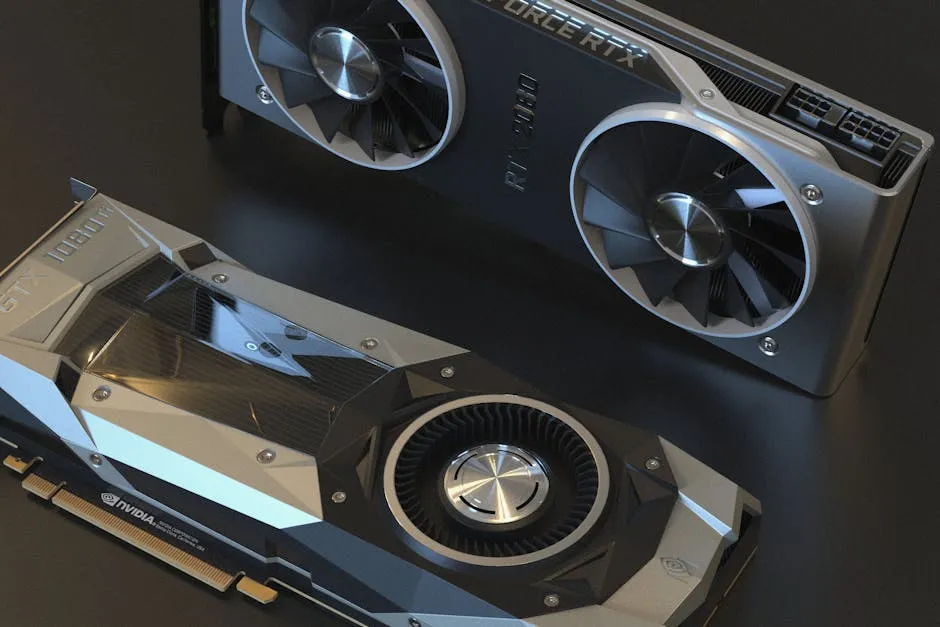
You do not need expensive hardware to get started with local AI. The minimum workable setup is 8 GB of RAM with a modern CPU or entry-level GPU. For a smooth, responsive experience with 7-billion-parameter models, target 16 GB of RAM and an NVIDIA GPU with at least 8 GB of VRAM. The RTX 3060 12GB variant — often available used for around $200–250 — handles most 7B models at a comfortable 40–50 tokens per second.
CPU-only operation works but runs noticeably slower, typically 5–15 tokens per second. Apple Silicon Mac users (M1 through M4 chips) have a distinct advantage: the unified memory architecture means even a base-model MacBook runs 13B models smoothly, with no discrete GPU needed. If you have a Mac with 16 GB or more of unified memory, you are well-positioned to run models without any additional hardware investment.
Step-by-Step: Install Ollama and Run a Model
Step 1: Download and install Ollama. Visit ollama.com and download the installer for your operating system. Mac and Linux users can use the one-line install script:
curl -fsSL https://ollama.com/install.sh | shWindows users download the .exe installer directly from the site and run it.
Step 2: Start the Ollama server. Open a terminal and run the following command. This launches the local API daemon in the background on port 11434, ready to receive requests.
ollama serveStep 3: Pull a model. Download Meta’s Llama 3.2 (approximately 4 GB). Other strong starter models: mistral for coding, qwen2.5 for multilingual, gemma3 for Google’s latest lightweight model.
ollama pull llama3.2Step 4: Start a chat session. Type your first message. The response is generated entirely on your own hardware — no internet connection needed after the initial download.
ollama run llama3.2Step 5: Add a visual interface (optional). Install AnythingLLM for a polished, ChatGPT-style desktop interface. Connect it to your running Ollama instance for conversation history, document search (RAG), and a clean UI — all 100% offline.
For LM Studio users, the flow is even simpler: download the app, open the built-in model browser, search by model name, click Download, then click Chat. The entire setup takes under ten minutes and requires zero command-line interaction.
According to the DEV Community’s 2026 local AI benchmarking report, local inference costs have effectively reached zero for individual developers, and Ollama is now being used in production deployments — not just hobby projects. The line between local and cloud AI quality continues to narrow every quarter.
Common Questions — — Run Local AI Model
Q: What is the minimum hardware needed to run a local AI model on a PC?
A: A functional minimum is 8 GB of RAM with any modern CPU or GPU. For a smooth experience with 7-billion-parameter models, target 16 GB of RAM and a GPU with at least 8 GB of VRAM. An NVIDIA RTX 3060 12GB (available used for around $200) runs most 7B models at 40–50 tokens per second. Apple Silicon Macs also perform well due to their unified memory design.
Q: Is running a local AI model truly private?
A: Yes. Tools like Ollama and LM Studio process everything on your own hardware. Your prompts, documents, and conversations never reach any external server. Ollama has no telemetry by default, the source code is fully open and auditable, and it is capable of completely air-gapped operation — no internet connection at all once models are downloaded.
Q: How does local AI quality compare to ChatGPT in 2026?
A: Frontier cloud models still lead on complex multi-step reasoning and real-time knowledge. However, local models on consumer hardware now score above 80–83% on standardized MMLU benchmarks. For everyday tasks — writing assistance, code generation, summarization, and Q&A — the quality gap is minimal and continues to close with each new model release.
Q: Can I run a local AI model completely offline?
A: Yes. Once a model file is downloaded to your PC, both Ollama and LM Studio run entirely without an internet connection. The initial download (typically 4–20 GB depending on model size) requires internet access, but all subsequent inference, chat, and API use is fully local. This makes local AI ideal for travel, regions with unreliable connectivity, or environments where internet access is restricted.
Conclusion
Running a local AI model on your PC is one of the most practical tech upgrades you can make in 2026. The three key takeaways: choose Ollama for developer flexibility and an always-on API, choose LM Studio for a visual no-code setup, and a mid-range PC with 16 GB of RAM handles 7-billion-parameter models comfortably with no ongoing subscription cost. Your data stays entirely on your machine. Your workflow stays uninterrupted. To stay current with the models, tools, and breakthroughs powering this shift, explore the latest AI developments and analysis covering new model releases, benchmark results, and enterprise trends. Start with Ollama, pull Llama 3.2, and run your first local query today.
See also: How-To Guides: Practical Technology Tutorials for 2026 — browse all How-to articles on Hubkub.
Related Articles
- How to Run Local AI Models Free with Ollama: 2026 Guide
- Run AI Models Locally With Ollama: 2026 Step-by-Step Guide
- How to Run Local LLMs with Ollama in 2026: Step-by-Step
Last Updated: April 13, 2026
AI tool evaluation checklist
AI product claims can change quickly. Before relying on this tool or model in a real workflow, compare the current official documentation, pricing, data policy, and limits with your use case.
- Use case fit: define whether you need writing, coding, research, automation, image/video work, or enterprise controls.
- Data risk: avoid pasting confidential customer data, credentials, private source code, or regulated records unless your plan and policy allow it.
- Verification: fact-check important outputs against official sources or direct testing.
- Cost and limits: review message caps, context limits, file support, API pricing, and team controls before adopting it widely.
Related Hubkub resources: AI Tools Guides, Content Quality Standards, and AI Usage Policy.
FAQ
Can I rely on AI output without checking it?
No. Important AI outputs should be verified against official sources, direct testing, or expert review, especially for technical, financial, legal, or security decisions.
What data should I avoid entering into AI tools?
Avoid confidential customer data, passwords, private keys, regulated records, and private source code unless your organization explicitly permits it.