Key Takeaways
- Over 52 million people downloaded Ollama in the first quarter of 2026 — a 520x jump from just three years prior.
- What Is Ollama and Why Run AI Locally.
- Hardware Requirements for Running AI Models Locally.
- How to Install Ollama and Run Your First Model.
Over 52 million people downloaded Ollama in the first quarter of 2026 — a 520x jump from just three years prior. Running AI models locally means zero subscription fees, no API rate limits, and prompts that never reach a third-party server.
The barrier used to be hardware cost and technical complexity. That gap has largely closed. A modern laptop with 16 GB of RAM can run models that rival GPT-3.5-level output, entirely offline. Ollama — an open-source tool now sitting at 169,000 GitHub stars — makes this accessible to anyone.
This guide walks you through exactly how to install Ollama on Windows, macOS, or Linux, choose the right model for your hardware, and have a fully private local AI model running in under 10 minutes. No cloud account. No credit card. No data logged.
What Is Ollama and Why Run AI Locally?
Ollama is an open-source runtime that manages large language models on your own hardware. Think of it as Docker for AI models: you pull a model with one command, and Ollama handles quantization, memory allocation, and GPU acceleration automatically. It also exposes a local REST API at localhost:11434, making it easy to integrate into scripts, apps, or front-end tools like Open WebUI.
The arguments for running AI locally go well beyond saving money. Every prompt you send to a cloud AI service is processed on a third-party server and may be retained or used for training. For professionals handling contracts, patient records, source code, or unpublished research, that is a real liability. A local model eliminates that exposure entirely.
Ollama’s 520x download growth between Q1 2023 and Q1 2026 reflects how mainstream local AI has become. The ecosystem now includes over 135,000 GGUF-format models on HuggingFace, covering general chat, coding, reasoning, multilingual tasks, and more. Key benefits at a glance:
- No rate limits — queries run as fast as your hardware allows
- Works offline — no internet connection required after model download
- Free inference — zero per-token billing or monthly subscription after setup
- Full model control — switch models instantly or run multiple simultaneously
- Data stays local — nothing is logged, transmitted, or used for training
Hardware Requirements for Running AI Models Locally
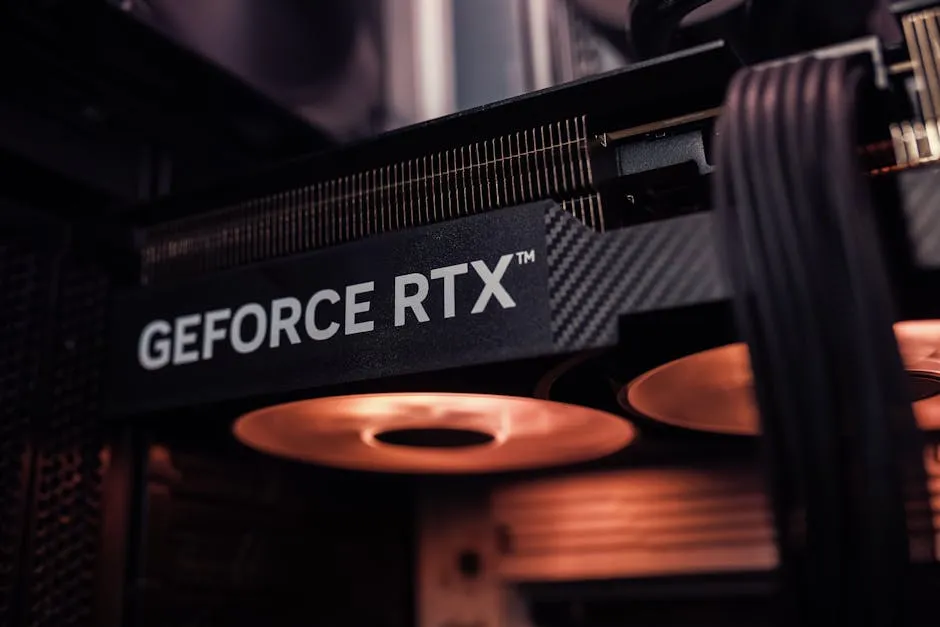
You do not need a high-end workstation. The practical minimum for a usable experience is 8 GB of system RAM, which supports 3B-parameter models at acceptable CPU speeds. For 7B–8B models — a major capability step up — 16 GB of RAM or a GPU with 6–8 GB of VRAM delivers a noticeably better experience for most users.
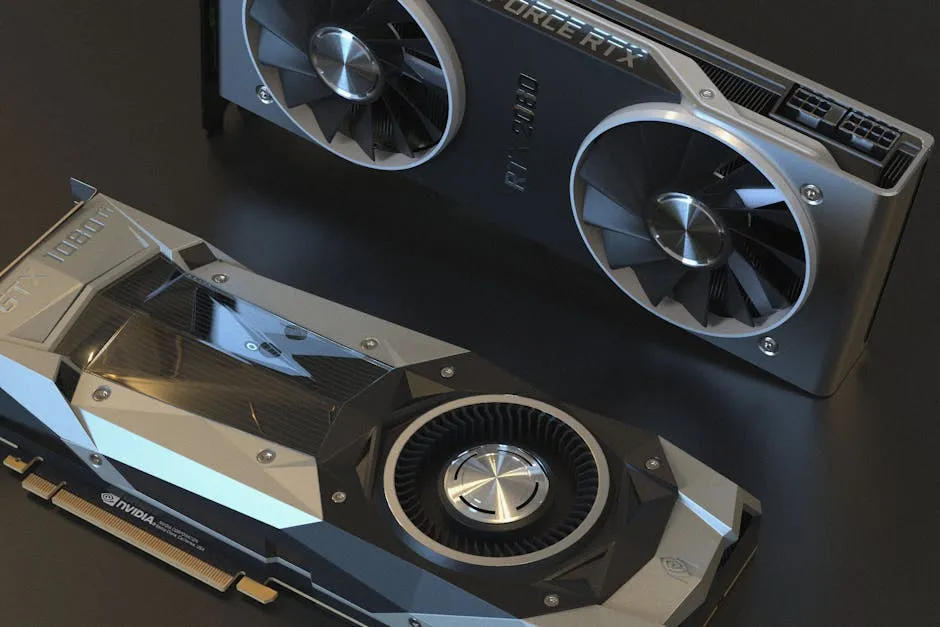
GPU acceleration is the single biggest performance lever. When a model fits entirely in VRAM, inference runs at 20–40 tokens per second on a mid-range card. When the model overflows to system RAM, speed drops 5x to 30x. At 4-bit quantization (Q4_K_M), an 8B model needs roughly 6 GB of VRAM; a 14B model needs about 10 GB; a 32B model needs 20–22 GB.
Apple Silicon Macs are especially well-suited because the CPU and GPU share a unified memory pool. A MacBook Air M3 with 16 GB runs Llama 3.2 8B at 30+ tokens per second with no discrete GPU required. For more practical setup guides like this one, browse the how-to tutorials on Hubkub covering software tools and tech workflows.
| Hardware Tier | RAM / VRAM | Best Model | Speed (approx.) |
|---|---|---|---|
| CPU only | 8 GB RAM | Phi-4 Mini (3.8B) | 4–8 tok/s |
| Entry GPU | 6–8 GB VRAM | Llama 3.2 8B (Q4) | 15–25 tok/s |
| Mid-range GPU | 12–16 GB VRAM | Qwen 3 14B, Gemma 3 9B | 25–40 tok/s |
| Enthusiast GPU | 24 GB VRAM | Qwen 3 32B, Mistral Large | 15–25 tok/s |
How to Install Ollama and Run Your First Model
Installation takes under five minutes on any platform. The process is the same across operating systems: install the runtime, pull a model, and run it. All steps below assume a fresh install with no prior Ollama setup.
Windows
Visit the official Ollama download page and grab the Windows installer. Run the .exe file and follow the prompts. Ollama installs as a background Windows service that launches automatically on boot. It requires Windows 10 build 1903 or later. NVIDIA CUDA is detected and enabled automatically if a compatible GPU is present.
macOS
Download the macOS .zip from ollama.com, extract it, and drag Ollama.app to your Applications folder. Launch it once to start the background service. You can also install via Homebrew:
brew install ollamaLinux
The official one-line installer works across Ubuntu, Debian, Fedora, Arch, and most other distributions. It detects your CPU architecture and GPU automatically:
curl -fsSL https://ollama.com/install.sh | shAfter installation, Ollama runs as a systemd service. NVIDIA GPUs use CUDA; AMD GPUs use ROCm. Both are configured by the install script with no manual steps required.
Pull and Run Your First Model
With Ollama running, open a terminal and pull Llama 3.2 — a versatile 8B model that performs well on most hardware:
ollama pull llama3.2Then launch an interactive chat session:
ollama run llama3.2Type any message and press Enter. Your prompts are processed entirely on your machine — nothing leaves your device. Type /bye to exit the session. Explore the full model library at ollama.com/library, which includes over 100 open-weight models: DeepSeek Coder and Qwen Coder for programming, Phi-4 for reasoning on limited hardware, and Qwen 3 for multilingual tasks.
Common Questions — Run AI Locally with Ollama
Q: Is Ollama completely free to use?
A: Yes. Ollama is open-source software distributed under the MIT license with no subscription or usage fee. Your only cost is the hardware you already own and the electricity to run it. Once a model is downloaded, you can query it an unlimited number of times with zero per-token or per-session billing.
Q: What are the minimum hardware requirements for Ollama?
A: The minimum is 8 GB of system RAM to run small 3B-parameter models like Phi-4 Mini at 4–8 tokens per second on CPU. For a meaningfully better experience with 7B–8B models, a GPU with 6–8 GB of VRAM is recommended. Apple Silicon Macs with 16 GB of unified memory are among the most efficient platforms for local AI in 2026.
Q: Can I run Ollama without a GPU?
A: Yes. Ollama runs on CPU-only machines without any configuration changes. Performance is slower — typically 4–10 tokens per second on a modern CPU — but fully functional for tasks like summarization, Q&A, and drafting. For CPU-only setups, Phi-4 Mini (3.8B) or Llama 3.2 3B offer the best balance of speed and quality.
Q: Which AI model should I start with in Ollama?
A: For general-purpose use, start with Llama 3.2 8B — it delivers strong results across chat, writing, and reasoning on most hardware. For coding assistance, Qwen 2.5 Coder 7B is a top pick in 2026. If you are on a machine with limited RAM, Phi-4 Mini (3.8B) punches above its size. All are free and available via a single ollama pull command.
Conclusion
Running AI locally is no longer a specialist endeavour — it is a practical, accessible option for developers, professionals, and curious users alike. Three takeaways: Ollama installs in minutes on Windows, Mac, and Linux and handles all hardware complexity automatically; 8–16 GB of RAM is enough to run genuinely capable models today; and after setup, every inference is free with no data collection and no rate limits.
The 52 million monthly downloads speak for themselves. Whether you want a private coding assistant, an offline research tool, or simply an AI you fully control, Ollama is the fastest path to getting there. Stay up to date on the latest model releases, open-source AI tools, and local inference developments in our AI section on Hubkub.
Last Updated: April 14, 2026
AI tool evaluation checklist
AI product claims can change quickly. Before relying on this tool or model in a real workflow, compare the current official documentation, pricing, data policy, and limits with your use case.
- Use case fit: define whether you need writing, coding, research, automation, image/video work, or enterprise controls.
- Data risk: avoid pasting confidential customer data, credentials, private source code, or regulated records unless your plan and policy allow it.
- Verification: fact-check important outputs against official sources or direct testing.
- Cost and limits: review message caps, context limits, file support, API pricing, and team controls before adopting it widely.
Related Hubkub resources: AI Tools Guides, Content Quality Standards, and AI Usage Policy.
FAQ
Can I rely on AI output without checking it?
No. Important AI outputs should be verified against official sources, direct testing, or expert review, especially for technical, financial, legal, or security decisions.
What data should I avoid entering into AI tools?
Avoid confidential customer data, passwords, private keys, regulated records, and private source code unless your organization explicitly permits it.