Key Takeaways
- Llama 4 Scout packs 109 billion total parameters with only 17 billion active — it runs on a consumer GPU with just 12GB VRAM.
- Ollama installs in under 5 minutes and downloads Llama 4 Scout with a single terminal command, no API key or cloud account required.
- Scout’s 10 million token context window is the widest available for any locally-runnable open model in 2026.
- Llama 4 Maverick (400B total parameters) requires 24GB VRAM — only practical on an RTX 4090 or Mac Studio M4 Max.
What if you could run Llama 4 Scout locally and process 10 million tokens — roughly 7,500 pages of text — entirely offline, at zero per-token cost? Meta’s Llama 4 Scout, launched April 5, 2025, makes that realistic for anyone with a mid-range GPU. Yet most developers still route requests to cloud APIs, paying per-token fees when a faster, private option is within reach.

The challenge is rarely hardware. An RTX 4070 with 12GB VRAM handles Llama 4 Scout at 20–40 tokens per second. The missing piece is Ollama — the open-source runtime that reduces complex LLM deployment to a single terminal command, with no Docker, no Python environment setup, and no API key needed.
This guide walks through everything: hardware requirements for Scout and Maverick, Ollama installation on Mac, Windows, and Linux, the exact commands to pull and start the model, and performance tuning tips to maximize speed on consumer hardware.
What Makes Llama 4 Scout Worth Running Locally?
Llama 4 Scout uses a Mixture-of-Experts (MoE) architecture with 109 billion total parameters but only 17 billion active during inference. That design gives it the output quality of a large dense model at the compute cost of a 17B model — which is why consumer hardware can run it at all.
The 10 million token context window sets it apart from all other locally-runnable models. For comparison, Gemini 2.5 Pro caps at 1 million tokens on standard API tiers. Scout’s extended context lets you load an entire codebase, a folder of PDFs, or months of log files into a single prompt — without chunking or pagination workarounds.
On standardized benchmarks, Scout scores 79.6% on MMLU and 90.6% on MGSM (multilingual mathematical reasoning), according to Meta’s official Llama 4 announcement. The model also handles image inputs natively — multimodal capability is baked into the architecture, not added as a separate module.
What Hardware Do You Need for Llama 4 Scout?

Scout runs at practical speeds on the following consumer hardware at Q4_K_M quantization — the recommended balance of inference speed, memory usage, and output quality:
| Model | Total Parameters | Active Parameters | Context Window | Min VRAM | Recommended Hardware |
|---|---|---|---|---|---|
| Llama 4 Scout | 109B | 17B | 10 million tokens | 12GB | RTX 4070, MacBook Pro M2 Pro |
| Llama 4 Maverick | 400B | 17B | 1 million tokens | 24GB | RTX 4090, Mac Studio M4 Max |
If your GPU has less than 12GB VRAM, Ollama automatically offloads layers to system RAM. This still works, but inference speed drops to 2–5 tokens per second. A machine with 32GB of system RAM can run Scout CPU-only as a last resort, though it is too slow for interactive chat.
For developers in Southeast Asia on a budget, the RTX 4060 Ti 16GB offers comfortable headroom for Scout at Q4_K_M with room for longer context prompts. It is currently available at around $380–$420 USD street price across major regional retailers.
How Do You Install Ollama on Mac, Windows, and Linux?
Ollama provides native installers for all three platforms. The full installation takes under 5 minutes on a typical broadband connection.
Linux and macOS — run the official install script in your terminal. It auto-detects your CPU architecture and installs the correct binary:
curl -fsSL https://ollama.com/install.sh | shmacOS requires macOS 14 Sonoma or later. On Apple Silicon, Ollama routes computation through the Metal GPU backend automatically. Verify the install succeeded by running:
ollama --versionWindows — download the graphical installer from ollama.com. It installs to your home directory without Administrator rights. After setup, Ollama runs as a background service accessible from Command Prompt, PowerShell, or any terminal emulator. The local API starts automatically at http://localhost:11434, ready to accept requests from any application.
How Do You Download and Run Llama 4 Scout?
With Ollama installed, pull and start Llama 4 Scout in a single command. Open any terminal and run:
ollama run llama4:scoutOllama downloads the Q4_K_M quantized model weights (approximately 67GB) and immediately opens an interactive chat session. The first run takes time based on your internet speed; subsequent launches load from local cache in seconds.
To pre-download the model without starting a session — useful before an offline demo or server setup — use the pull command separately:
ollama pull llama4:scoutTo query Scout programmatically, send a POST request to the local REST API. Ollama’s API is compatible with the OpenAI SDK format, so many existing integrations work with a base URL change only:
curl http://localhost:11434/api/generate -d '{"model": "llama4:scout", "prompt": "Explain MoE architecture in two sentences."}'For a full library of local AI setup tutorials, browse our how-to guides covering Ollama API integrations, local embedding pipelines, and more.
Can You Run Llama 4 Maverick on Consumer Hardware?
Llama 4 Maverick outperforms Scout on complex reasoning — it scores 85.5% on MMLU versus Scout’s 79.6%. But Maverick’s 400 billion total parameters and 128-expert MoE design make it a fundamentally different hardware challenge.
At Q4 quantization, Maverick requires approximately 230GB of combined VRAM. No single consumer GPU meets that threshold. Practical local Maverick options remain limited:
- RTX 5090 (24GB VRAM): Runs Maverick only at aggressive Q2 quantization, at 8–12 tokens per second with noticeable quality degradation.
- Mac Studio M4 Max (128GB unified memory): The most cost-effective single-device path to higher-quality Maverick inference — no VRAM fragmentation between discrete GPUs.
- Dual RTX 4090 (48GB total VRAM): Feasible with Ollama’s layer-splitting support, but requires both GPUs on the same system bus and careful
OLLAMA_NUM_GPUconfiguration.
For the vast majority of use cases, Llama 4 Scout is the right choice. The quality difference between Scout and Maverick is narrower than the hardware investment required to run Maverick at acceptable speed. For deeper analysis of open AI model trade-offs, visit our AI coverage.
How Do You Get the Best Performance From Local Llama 4?
Ollama’s defaults are conservative. These settings consistently improve inference speed and output quality for Llama 4 Scout:
- Stay on Q4_K_M: Ollama’s default for Scout. Avoid Q8 unless you have 24GB+ VRAM — the speed penalty outweighs the marginal quality gain for most tasks.
- Force full GPU offloading: Set
OLLAMA_NUM_GPU=99before starting Ollama to prevent unintentional CPU offloading on hybrid systems. - Keep prompts under 8,192 tokens when speed matters: Scout supports 10M tokens, but longer contexts increase memory pressure and slow generation. Reserve the full context for tasks that genuinely need it.
- Scale parallelism for API server use: Set
OLLAMA_NUM_PARALLEL=4when running Scout as a shared inference server for multiple concurrent users. - Update Ollama regularly: As of April 2026, Ollama ships new builds every two weeks. Recent releases include faster GGUF file loading and improved Metal performance on Apple Silicon.
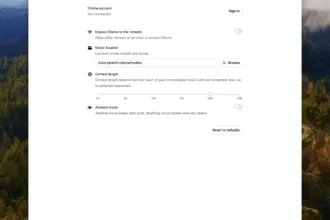
Ollama also supports a Modelfile system for per-model customization. You can set a custom system prompt, adjust temperature, or cap the context length by creating a Modelfile and building a named variant with ollama create my-scout -f ./Modelfile.
Common Questions — Run Llama 4 Locally
Q: Is Llama 4 Scout free to use?
A: Yes. Meta released Llama 4 Scout under the Llama 4 Community License, which permits free use for research and commercial applications for organizations with under 700 million monthly active users. Ollama itself is open-source and free. Your only costs are electricity and the hardware you already own.
Q: How much VRAM does Llama 4 Scout need with Ollama?
A: At Q4_K_M quantization, Scout requires approximately 12GB of VRAM. If your GPU has less, Ollama offloads layers to system RAM — inference still works but slows to 2–5 tokens per second. A GPU with 16GB VRAM, such as the RTX 4060 Ti, gives comfortable headroom for longer prompts.
Q: Is Llama 4 Scout natively multimodal?
A: Yes. Llama 4 Scout was built as a multimodal model from the start — it accepts both text and image inputs in the same prompt. The vision capability is part of the base architecture rather than a bolt-on adapter, giving it more consistent visual reasoning than earlier hybrid approaches.
Q: How does Llama 4 Scout compare to Gemini 2.5 Pro or GPT-5.4?
A: Both Gemini 2.5 Pro and GPT-5.4 with Thinking mode are cloud-only models that cannot run locally. Llama 4 Scout is the strongest open-weight alternative for local deployment. Its 10 million token context window exceeds what Gemini 2.5 Pro offers on standard API tiers, making Scout the superior choice for long-document processing when privacy or offline access is a requirement.
Conclusion
Llama 4 Scout is the most capable open-weight model available for local deployment in 2026. Its MoE architecture keeps active parameters at 17 billion — viable on 12GB VRAM — while delivering a 10 million token context window no cloud model matches at the free tier. Ollama makes the setup dependency-free: install the runtime, pull the model, and you have a private AI inference server running in minutes.
For most developers, Scout at Q4_K_M on an RTX 4070 or M2 MacBook Pro is the ideal starting point. Explore more local AI tutorials in our How-to section.
Last Updated: April 16, 2026
AI tool evaluation checklist
AI product claims can change quickly. Before relying on this tool or model in a real workflow, compare the current official documentation, pricing, data policy, and limits with your use case.
- Use case fit: define whether you need writing, coding, research, automation, image/video work, or enterprise controls.
- Data risk: avoid pasting confidential customer data, credentials, private source code, or regulated records unless your plan and policy allow it.
- Verification: fact-check important outputs against official sources or direct testing.
- Cost and limits: review message caps, context limits, file support, API pricing, and team controls before adopting it widely.
Related Hubkub resources: AI Tools Guides, Content Quality Standards, and AI Usage Policy.
FAQ
Can I rely on AI output without checking it?
No. Important AI outputs should be verified against official sources, direct testing, or expert review, especially for technical, financial, legal, or security decisions.
What data should I avoid entering into AI tools?
Avoid confidential customer data, passwords, private keys, regulated records, and private source code unless your organization explicitly permits it.