Table of Contents
- Why Blocking Distracting Websites Boosts Productivity
- 5 Methods to Block Websites on Chrome in 2026
- How to Block Sites Using Chrome Extensions Step by Step
- Block Websites System-Wide Using the Hosts File
- Common Questions — How to Block Distracting Websites on Chrome
- Conclusion
- Related Articles
- Editorial and update note
- Related Hubkub resources
- Practical troubleshooting checklist
- FAQ
If you’ve ever sat down to work only to find yourself 20 minutes deep into a social media scroll, you already know the problem. Distracting websites kill productivity — and Chrome, as the world’s most popular browser, is often where those distractions live. The good news: learning how to block distracting websites on Chrome is easier than most people think. In this guide, you’ll find five proven methods — from simple free extensions to system-level blocks — so you can pick the one that fits your workflow and start reclaiming your focus today. Whether you’re a student, remote worker, or parent managing screen time, one of these solutions will work for you.

Key takeaways
- Follow the main steps in How to Block Websites on Chrome: 5 Methods That Work (2026) in order; skipping prerequisites is the most common source of errors.
- Prioritize official packages, backups, and rollback paths when the guide touches servers, security, or production tools.
- Use the Next Read links at the end to continue with related setup, performance, or protection tasks.
Why Blocking Distracting Websites Boosts Productivity
Research from the University of California Irvine found that it takes an average of 23 minutes to fully refocus after an interruption. A quick check of YouTube or Reddit isn’t just a two-minute detour — it’s a near-half-hour productivity hit. Multiplied across a workday, that adds up fast.
Blocking distracting sites removes the temptation at the source. Instead of relying on willpower — a finite resource that depletes as the day goes on — you create an environment where distraction simply isn’t an option. This is exactly what productivity researchers call “choice architecture”: designing your environment to make the right choice the easy choice.
The five methods below range from zero-configuration browser extensions to advanced OS-level blocks. Each has its own strengths depending on your situation, technical comfort level, and budget.
5 Methods to Block Websites on Chrome in 2026
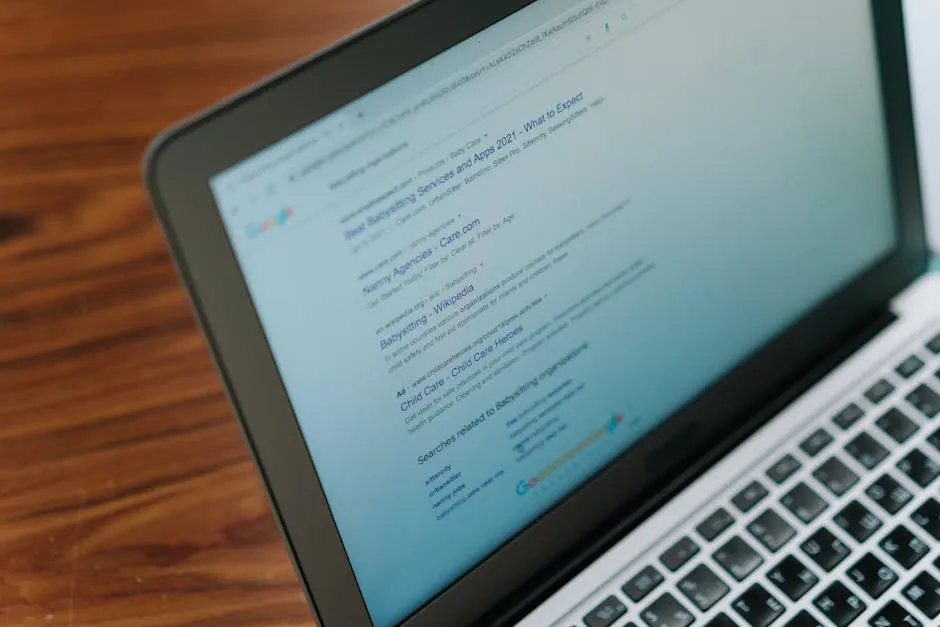
Here’s a quick comparison of all five methods before we dive into the step-by-step details:
| Method | Cost | Ease of Setup | Chrome Only? | Best For |
|---|---|---|---|---|
| BlockSite Extension | Free / Pro $4/mo | Very Easy | Yes (Chrome/Edge) | Most users, password lock |
| StayFocusd Extension | 100% Free | Easy | Yes (Chrome only) | Time-budget approach |
| Freedom App | $3–7/month | Easy | No (cross-device) | Multi-device blocking |
| Chrome FamilyLink | Free | Moderate | Yes | Kids / parental controls |
| Edit Hosts File | Free | Advanced | No (all browsers) | Power users, no extensions |
Each method is explained in full below. Start with Method 1 or 2 if you want something running in under five minutes.
How to Block Sites Using Chrome Extensions Step by Step
Method 1: BlockSite Extension (Free / Pro)
BlockSite is the most popular website blocker on the Chrome Web Store, with over 3 million users. Its free tier covers the basics; Pro ($4/month) adds password protection and sync across devices.
- Open Chrome and go to the Chrome Web Store. Search for “BlockSite” and click Add to Chrome.
- Once installed, click the BlockSite icon in your toolbar and select Block a new site.
- Type the URL you want to block (e.g.,
facebook.com) and press Enter. - To set a schedule (e.g., block only during work hours), go to Settings → Work Mode and configure your hours.
- To prevent yourself from easily disabling it, enable Password Protection in Settings — use a password you won’t remember off the top of your head.
Pro tip: BlockSite lets you add entire categories like “Social Media” or “News” with one click, so you don’t have to block sites one by one.
Method 2: StayFocusd Extension (100% Free)
StayFocusd takes a different approach: instead of hard-blocking sites, it gives you a daily time budget. Once you’ve used up your allotted time on distraction sites, they’re blocked for the rest of the day. It also features the infamous Nuclear Option — a temporary lock that blocks everything except whitelisted sites.
- Install StayFocusd from the Chrome Web Store.
- Click its icon and go to Settings → Blocked Sites. Add the sites you want to limit.
- Under Max Time Allowed, set your daily budget (e.g., 10 minutes total across all blocked sites).
- Set Active Hours so blocking only applies during your work schedule.
- For a serious crunch session, click Nuclear Option, set a duration, and confirm. You cannot undo this — it’s intentionally hard to reverse.
StayFocusd is Chrome-only, but its zero-cost model makes it one of the best free options available.
Method 3: Freedom App (Best for Multi-Device)
If your distractions follow you from your laptop to your phone, a Chrome extension alone won’t cut it. Freedom ($3–7/month depending on plan) installs on all your devices and syncs your block lists. Start a “Freedom session” on your Mac and your iPhone’s Safari is blocked too. It’s the best option for people who know they’ll just switch to mobile when Chrome is blocked.
Method 4: Chrome FamilyLink (Parental Controls)
Google’s FamilyLink is built into Chrome and Google accounts. It’s ideal for setting up content restrictions for children — parents can approve or block specific sites from a parent device. However, it’s not practical for self-blocking adults because it requires a separate parent-managed account. If you’re setting up a Chromebook for a child, this is the cleanest built-in solution.
Block Websites System-Wide Using the Hosts File
The hosts file method is the most powerful option on this list: it blocks websites at the operating system level, which means no browser can reach those sites — not Chrome, not Firefox, not Edge. It’s free, requires no extension, and is nearly impossible to bypass accidentally. The trade-off is that it requires a little more technical comfort.
On Windows
Open Notepad as Administrator (right-click → Run as administrator). Then open the file at:
C:WindowsSystem32driversetchostsScroll to the bottom and add a new line for each site you want to block:
127.0.0.1 www.facebook.com
127.0.0.1 facebook.com
127.0.0.1 www.reddit.com
127.0.0.1 reddit.com
Save the file and flush your DNS cache by running this command in Command Prompt:
ipconfig /flushdnsOn Mac or Linux
Open Terminal and run:
sudo nano /etc/hostsAdd the same lines as above. Save with Ctrl+O, then exit with Ctrl+X. Flush DNS on Mac with:
sudo dscacheutil -flushcache; sudo killall -HUP mDNSResponderTo unblock a site later, simply remove its line from the hosts file and flush DNS again. This method blocks all browsers simultaneously and doesn’t depend on any third-party software — making it a solid choice for anyone who wants a clean, extension-free setup.
For more tool reviews and software comparisons, visit our Reviews section — we regularly test the best productivity apps available in 2026.
Common Questions — How to Block Distracting Websites on Chrome
Can I block websites on Chrome without installing an extension?
Yes. The hosts file method (described above) requires no browser extension at all. You edit a system-level text file to redirect blocked domains to a dead address (127.0.0.1), which prevents all browsers — including Chrome — from loading them. It requires administrator access on your computer but is completely free.
Is BlockSite or StayFocusd better?
It depends on your blocking style. BlockSite is better if you want hard blocks with a schedule and password protection — it’s straightforward to set up and has a polished UI. StayFocusd is better if you prefer a time-budget approach (e.g., “I can check Reddit for 10 minutes, then it locks”) and want a completely free solution with no ads. Both work well; many people try StayFocusd first since it costs nothing.
Will blocking sites in Chrome also block them on my phone?
Chrome extensions only work on desktop Chrome — they do not carry over to Chrome on Android or iOS. If you need cross-device blocking, use the Freedom app, which syncs blocks across Mac, Windows, iOS, and Android simultaneously. The hosts file method blocks sites on the computer it’s applied to but does not affect your phone.
Can I set a schedule so sites are only blocked during work hours?
Yes — both BlockSite and StayFocusd support scheduling. In BlockSite, go to Settings → Work Mode to define your focus hours (e.g., Monday–Friday, 9 AM–6 PM). StayFocusd has an Active Hours setting that works the same way. The Freedom app also supports recurring scheduled sessions, so blocks activate automatically every weekday morning without you having to remember to turn them on.
Conclusion
Blocking distracting websites on Chrome doesn’t have to be complicated. For most people, StayFocusd (free, time-budget approach) or BlockSite (easy schedule + password lock) will solve the problem in under five minutes. If you need blocks that follow you across every device and browser, Freedom is worth the small monthly cost. And if you want a no-extension, all-browser solution, editing your hosts file is the most robust option available.
The best blocker is the one you’ll actually use consistently. Pick one method, set it up today, and notice the difference in your focus by end of week.
Want more productivity how-tos and tool guides? Browse our full How-To library — updated weekly with practical tech tutorials for 2026.
Related Articles
- Best Free Antivirus Software 2026: Top 7 Picks Tested — Complement your Chrome blocking with real-time malware protection.
- Phishing Defense: How to Spot Attacks That Look Legitimate — Learn to identify phishing links before they reach your browser.
Last Updated: April 13, 2026
Editorial and update note
Hubkub articles are maintained with a practical quality checklist: clear purpose, useful context, safe recommendations, internal links to related guides, and correction pathways for outdated details. If you notice an error or stale information, please use our Contact or Corrections Policy pages so we can review it.
Learn more about our standards in Editorial Policy, Content Quality Standards, and Corrections Policy.
Related Hubkub resources
Practical troubleshooting checklist
Before buying new hardware or switching tools, walk through this checklist and test one change at a time. This makes it easier to identify what actually improved the result.
- Start with the basics: check lighting, placement, cable quality, browser permissions, app settings, and operating system updates.
- Change one variable: adjust one setting, test again, and note the difference.
- Compare apps: test the same device in two apps to separate hardware problems from software settings.
- Document results: keep the setting that improves quality without adding instability or privacy risk.
Related Hubkub resources: Content Quality Standards, Windows Utilities, and Corrections Policy.
FAQ
How should I use this guide?
Use it as a practical starting point, then verify details against your own device, account, software version, or official documentation.
What if the information becomes outdated?
Technology changes quickly. If you notice outdated steps or broken links, use Hubkub’s contact or corrections policy pages so the article can be reviewed.